Danielle Blasse 7010 - Cloe Pace-Soler 7352 - Rebecca Holloway 7279 - Natasha Welch 7399
Townley Grammar School - 14109
Showing posts with label green screen. Show all posts

Monday, 24 February 2014

Final Tweaks: Green Screen

Looking at some of our feedback on our trailer, it was obvious that tha narrative was not completely clear. One of the main issues was that during the facebook scrolling scene, the audience did not have enough time to read the facebook comment on the screen. Therefore, I decided to make amends and edit this scene.

Method

1) I had to create an image of the necessary facebook comment zoomed in on the screen.This proved to be a tricky process as when I first tried to do this on photoshop, the comment was too long on the screen. Therefore, I had to edit the image by duplicating the zoomed in screen shot and layering the images on top of one another so that you could read the whole comment. I had to erase around the edges of the top layer to ensure that it had smooth edges and looked professional.
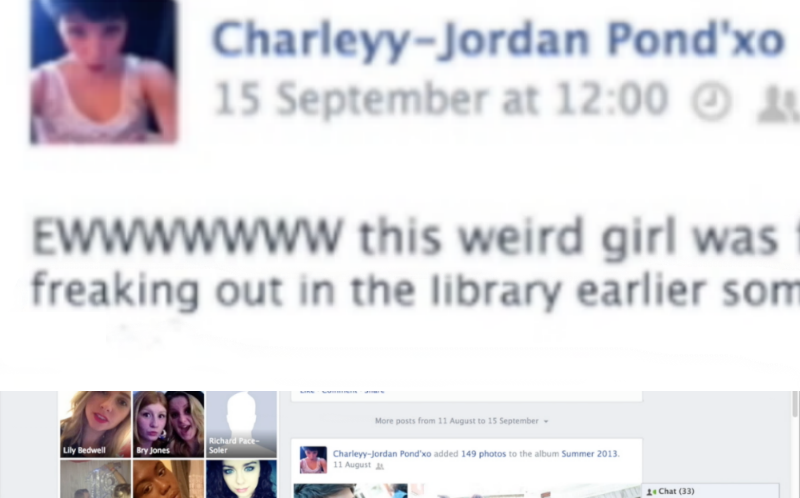
2) Then, I imported the image into Final Cut Pro, and put dragged it in position so that it was the background of the footage of her sitting on the laptop. However, this was still not very effective as the protagonist was sitting directly in front of the comment. So, I decided to make the footage of the protagonist disappear so that the audience could read the comment.

3) Therefore, I split the footage of the protgagonist on the laptop into two parts. Then, I moved the second part along so that it would not be featured at the same time as the close-up of the comment.

4) I had to put on the 'Keying' effect on the second part of the footage filmed in front of the green screen so that the background would come back when the comment disappears.

5)  I made the image of the comment longer so that it was long enough for the audience to read. Eventually, I made it 2.0 seconds long to make it effective.

6) Finally, I put on the 'Static' transion 'Style B' on either side of the image of the facebook comment to make it fit in with the sequence effectively.


Evaluation

Pros

  • This new version makes it easy for the audience to read the comment as the protagonist's head is no longer in the way, making it clear to read. It is also larger and stays on the screen for longer. This makes the narrative much more clear for the audience and we will not have so many problems of people misunderstanding the relationship between the two characters.
  • Using the Static Transition 'Style B' twice, rather than 'Style A' looks much more professional, rather than overusing various different effects, which looks a bit childish. I think it also suits the psychological, distorted effect that we want for the genre.

Cons

  • Having the protagonist disappear for a while may seem a bit unprofessional and random, however there is not many other options for us after receiving feedback that the protagonist being in the way is a problem for the narrative.
  • The facebook comment could be seen as lingering on the screen for too long, which may ruin the pace of the trailer, however it is still important for the audience to understand the narrative.


Tuesday, 7 January 2014

Changing the Green Screen Background

Looking back at the completed green screen footage, we decided that it did not look at realistic as we wanted. Therefore, I thought we should play around with the background and see if I could make it better. To begin with I wondered if I could make it look more realistic with the existing background. As the problem was with the lighting, I decided to change the lighting of the foreground image to make it match the background more smoothly.


1) I selected 'Colour Board' and then on the 'Exposure' tab I increased the highlights slightly and then decreased the midtones and the low-tones.

2) Then, I used the effect 'Day into Night' which makes the footage look more gloomy, matching the gloomy dark background more.

3) Then, I used the Keyer effect which allowed me to change the background of the footage. I imported the image of the cell, making sure the picture was of a high quality so it would not be blurry, as this would not look effective.

4) Finally, I played around with the Keyer effect, making it 'shrink' slightly so that there was not an obvious grey line surrounding the protagonist's outline.

This made the footage more realistic than previously, however I thought I would also try a different background to see if this was more successful. I took all the same steps, but used a different picture which had brighter lighting to suit the foreground more smoothly.


BEFORE:


AFTER:


Evaluation

PROS


  • The image conveys how she is trapped with her mental illness. The grim mise en scene and low-key lighting gives a creepy edge to the image, reinforcing the psychological genre.
  • The image does not look completely realistic, which could be seen as a good thing as it reminds the audience that it all in her mind, and that she is not really in a padded cell/prison cell.

CONS


  • The lighting still does not completely match the foreground. This is because in the background the lighting is seen on the right side and this is impossible to recreate in the foreground image.
  • The background is not the same quality as the foreground footage. This is more obvious in Option 2 with the prison cell, which would have to be changed if we were to use it as it currently looks very unprofessional. This could be solved by finding a higher resolution photograph.
  • Overall, I think this idea, although somewhat effective, is not to my liking as it looks only semi-realistic and so the audience cannot be sure whether it is supposed to be realistic but is failing or whether it's in the character's mind, which may be misleading.

Friday, 20 December 2013

Green Screen Editing

1) First of all, I had to choose which clips to use in the scene. I decided first of all to use a clip of the protagonist pacing with the antagonist standing in the background. I thought this would portray the stress on her mind, and also indicate that the antagonist, being her imaginary friend is the cause of it.

2) I used the Keyer tool on the protagonist clip, and then dragged on the image of the antagonist in the background. This made sure that the image of the protagonist was in front of the other clip, to avoid it looking unrealistic. I then had to export this clip before I could put a background image on.


3) I chose the background of the shot as a picture of a padded cell, as I thought this would look effective against her pacing as it would show her to be in a room which makes it look more 3D and effective than against a flat 2D background.

4) I put the 'Keyer' effect on the green screen image, which enables me to change the background.

5) I used the 'crop' tool on the padded cell image, to remove the black borders around it as this made it look unprofessional. I cropped the image 16.5 pixels on the bottom and 16.5 pixels on the top, which made it perfect for the image.

6) Then, I had to make sure the green screen image was smoothly in front of the image. I played around with the 'Keyer' tool and made sure that 'Fill Holes' was on 0, Edge Distance was on 5.0 and Spill level was on 45.%.

7) It still seemed after this that there was a grey hue around the head of the protagonist. Therefore, I used the Shrink/Expand on -2.0 to get  rid of this issue.

8) I did the same thing on many other clips, playing around with the setting to make some elements transparent in order to see what style I liked best.


This is an example of using a different style of 'keyer' called 'Luma Keyer' which makes the image in front much more transparent and luminous. I thought this style could maybe be useful to convey the distorted, hazy nature of her mind.

Evaluation 

Pros

  • The pacing clip in front of the padded cell image is effective as it conveys how she feels trapped within her own mind and can't escape from her illness.
  • Having the antagonist in the background standing still makes her seem ominous and therefore aids the psychological genre.

Cons

  • If we were to film again, I would like to try and film with more of a Full Shot as it would maybe look more realistic, however this isn't much of a problem.
  • The pacing clip is a little too slow for the montage as all the clips need to be fast to fit in with the fast, dramatic pace of the scene. Therefore, we need to speed up the clip in some way to fix this. 


Friday, 6 December 2013

Images/Video for the Green Screen

For this we decided that we wanted various shots of pills going down the drain and loads colourful and disorientating videos.

EXAMPLE 1: Here we have an optical illusion which could be rather effective to show the state of her mind.
The lines are disorientating and the black and white seems to blur into one.

EXAMPLE 2: We also wanted to have a padded cell involved in order to show the state of her mind. We thought we could put some green screen on the floor and have her curl up, and then we could move her onto the photo. However there is a possibility that this might not work but if it does it would be very effective.


Evaluation:
-This was harder to achieve as the lighting in the room didn't match the way we had lit up the character, therefore we decided not to use this as we didn't wish to seem unprofessional.
Another idea we had was close ups of certain body parts, for example eyes. This is because it would link more to the psychological genre and the eyes are in extreme detail so its a bit chilling.

Evaluation:
We decided not to use this clip as because the progatonist would be walking around infront of the eye the audience may have difficulty understanding the relevance and what the object actually is. Although it is quite chilling it doesn't have an explicit link to our genre and so isn't suitable.


EXAMPLE 3: We also thought we could have a lot of pills in the background in order to link this to the psychological genre and show that she has a mental illness.
The amount of different pills there could also suggest that she is under a lot of medication.

Evaluation:
-The image we are most likely to use is the one with the pills as it has an explicit link to our genre and helps the audience understand that our protagonist's condition means she is constantly taking medication in order to fit in and avoid any breakdowns.


Friday, 29 November 2013

Green Screen: Background

1) In order to edit the background onto the green screen image, I first had to record the facebook page. I did this using quicktime player and selecting File > New Screen Recording. This allowed me to film everything that was on my screen at the time.

2) I had to try many times to get the recording right, as it needed to be 8 seconds long to fit in with what we had already recorded as the background.

3) I edited the background footage on Final Cut Pro, by putting in the facebook footage, then dragging a black screen in. This would then show the background turning to black when the character shuts the laptop.

4) I used a 'static' transition in between the facebook footage and the black screen, to indicate towards the technological aspect.

5) I then exported this footage so that I could use it as the background image.

6) I created a New Project and dragged in the footage filmed in front of the green screen.

7) Then, I selected the effect 'Keyer' and dragged it on the footage. I could then change aspects of the effect so that it was more clear cut and looked more realistic.

8) Finally, I dragged on the exported facebook footage to be the background of the footage.

Evaluation 

Pros

  • The timing of the footage is just right as the static effect happens just the character shuts the laptop, which is effective.
  • The static transition is effective as it indicates that the image in the background is featuring what is on her screen, and also it gives a distorted edge.
  • The unrealistic, surreal look of the character in front of the images could be used effectively as it indicates that the scene is only in the character's mind, rather than real.
  • The scrolling movement is pretty smooth, rather than very jittery which make it look very unprofessional.
  • The mise en scene of the facebook wall is made to perfectly fit in with the character we were trying to portray, and includes images as well as text to make it realistic and visually appealing.

Cons

  • The background when it turns black looks a bit unrealistic as it contrasts with the bright lighting used on the character, however this would be very hard to avoid.
  • The scrolling may be a bit fast to read everything on the screen, however it was necessary to make it fit in with the time of the protagonist shutting the laptop, and we also didn't want the scene to be too long as it would drag on unnecessarily.

Thursday, 10 October 2013

Using Premiere Pro

Using premiere pro

When it came to editing our green screen footage on iMovie, we noticed that the footage was unrealistic, as it was obvious that there was a green screen being used. To overcome this issue, we decided to use premiere pro to edit our green screen footage on, as it allows space for a lot more precision. 

1 - We started by opening a new project in Premiere pro. When our project appeared we selected the 'media browser' in order to find our footage that we wish to edit.  The two videos that we were hoping to edit together was a small test clip of our protagonist rocking backwards and forwards. We would then have our spiraling transition clip as the background. This would help us to achieve an uncomfortable feeling that we were aiming for.

 2 - We located the two videos and dragged the test clip of our protagonist into their respected video rows and then placed the footage of the spiral transition between the two video rows of our protagonist test shot. 


 3 - Then we began to edit the footage - to do this we searched for the "keying" folder and selected the "eight point garbage matte". One this was selected we dragged it onto the first test protagonist clip and this allowed us to manipulate the framing of the video itself. We were able to crop out the parts of the frame that did not necessarily have to be there, such as the top left hand corner and right hand side of the frame.


4 - Although, with the keying editing, this still wasn't enough to impact on fully showing the green screen content that we were willing to show. In order to do this we had to edit the footage with another set of tools.


 5 - For this we searched for the "ultra key" tool and then selected " key colour" from the menu. With this, it turned our cursor to a pipette icon - once we clicked onto the green areas of the clip it lifted the green screen to reveal the content that we wish to replace it with.


6 - Although this made a vast improvement to our footage, there were still a few distinct issues with the background as there were a few grey patches left where the lighting may have fallen differently on areas of the green screen. In order to overcome this, we had to adjust many settings from the "matte generation" and "matte cleanup" options. From these two folders, we mainly adjusted the "pedestal" settings as we found that it got rid of the majority of the grey patches on our video without interfering with the appearance of the foreground too much. However, a problem that confronted us after we edited our footage was the framing around the green screen content as it remains a lot thicker around the sides than what was expected, although this is said to be solved by downloading the green screen content again.


Evaluating the turn out of editing the green screen footage with Premere Pro was a great success. We managed to overcome the difficulty of it looking too unrealistic.We also managed to sort out any faults with teh footage in detail and we were able to be specific. The only issue we had was that the background transition was cropped for a much smaller space but this can be overcome by choosing another transition.


Monday, 7 October 2013

Evaluation of Green Screen Trial

After a few little practices with the green screen while editing on imovie, we decided we needed to have a real trial using the actual camera:
  • In the practices both videos that we edited were shaky which gave a very unrealistic effect, but in the trial we used a tripod so this wasn't a problem.
  • In the practice, the lighting was unnatural and not properly lit and this created lots of shadows over the green screen making it loook unrealistic when edited together. It is very important to have a well lit green screen in order for the editing to work. Therefore, this time round we moved the green screen to an area with windows so that there were no shadows and everything could be seen well.
  • In the practice, we used a camera phone which meant that the quality of the exported video was low and this reduced the effect overall. Therefore, we used the actual camera which is of mucher high quality and this will make it look much more smooth and seemless overall.
  • In the practices, we edited the videos on imovie, and although it worked, it wasn't very effective as the two videos didn't look very seemless and the software recognised a part of the actors hair as green which made it blend into the background and look very unrealistic. The edges around the actors in front of the background were not very sharp. Therefore, we decided that this time round we'd edit the footage on adobe premiere pro, which we found out how to use from the technician.

Evaluation


Overall, the when we edited the two clips together in imovie, the effect was much more realistic and looked good, mainly due to the improved quality of the camera, the more effective lighting and the steadiness of the shots, which made it look more professional than previously. After we edited the two clips together on imovie, we then edited the background in on adobe premiere pro, which was difficult to get to grips with but looked much smoother and realistic than the results on imovie, which was promising. We came across the minor issue of the background clip being smaller than the foreground clip which made it look not as good, but this can be easily overcome by changing the size of the clip or finding a better one. 

Thursday, 3 October 2013

Green Screen

Green Screen


As part of our trailer, the use of a green screen is essential for our narrative to be decoded realistically. Editing a green screen into our footage was an aspect that we were not too confident in. To overcome this, we looked into ways to use our green screen footage in an appropriate way. The software that we used to do this mainly orientated around iMovie and Premiere Pro. To do this test run, we started off by filming two videos, one for each different character, in front of the green screen and then uploaded them to our computer.

After this, we imported the two videos to iMovie and then dragged one into the event, followed by dragging the remaining video over the top of it. When we did this, we were then given a few options, with "green screen" being one of them. We were then able to align the two clips onto each other so the finished product looked presentable. These stages can be applied to any video, so for instance, you could follow the above procedure and then layer it onto the transition clip and the green screen will mirror the transition patterns onto it, therefore making to look like Natasha, was in a room that had animated walls.


Wednesday, 18 September 2013

Green Screen Research

Green Screen Research

For our initial storyboard and narrative for our trailer, we needed a creative edge to set our trailer apart from the conformations that occur within a psychological trailer. With the use of a green screen we hope that it will allow us to deliver our message about schizophrenia clearly yet creatively. 


Content

Our use of the green screen will hopefully illustrate the perspective of the protagonist as her schizophrenia spirals out of control. Focusing on the privacy aspect of our narrative, the green screen will mirror the protagonist's online bullying ordeal following on from the antagonist judging her earlier on that day at college. The content will be the image of the protagonists screen whilst she is scrolling down the social media platform, Facebook, stalking the antagonist. Her surroundings will turn into her thoughts which we will convey by non-stop abuse such as "no one likes you" through comments that will pop up one my one gradually getting faster and this is a potentiality for a transition into our montage scene of the trailer.


Transitions


The content of the green screen needs to be changed throughout the trailer but it wouldn't be convincing enough if the content was to change spontaneously.As a transition, a melting effect would work sufficiently as it reiterates the downfall of the protagonist. To achieve this melting effect from the Facebook content, to a white wall Adobe After Effects to achieve this visual effect. Although, after using After Effects last year, this may bring many difficulties to the editing process as it wasn't a program that we found easy to use.
 However, the video above uses interesting transitions and are easy to access - at 0:21 of the video a transition is used that almost looks like it's barricading you in, this could work well to provide an isolated feeling for our protagonist. The animation on the right hand side, also creates a good transition or could be used alone at the beginning of our protagonists hallucinations. 

Thursday, 5 September 2013

Green Screen: Technical Side

Once we had decided on using a green screen in our trailer it was time for us to work out the technical aspects of using one. None of us had any experience in dealing with green screens or editing them so it was important for some research to take place. I looked around the internet and found out a multitude of tips for using a green screen.
  • First of all, we had to decide on where we wanted to film using the green screen, as this would affect the size and type of screen that we used. We chose to use the flats that are used as staging in the theatre as we could arrange them as big or as small as we wanted, or even make them smaller gradually to put across the idea of the main character being slowly trapped by her illness as time goes on.
  • From this decision, we could easily choose how to go about using the green screen, and so we thought it would be a good idea to purchase some cloth/ sheets of the right measurements, and then dye them -using fabric dye- green. We thought this would be the most practical option as we could move them around and adjust them easily.
  • I came across tips on choosing a colour for our screen. Typically, blue or green is used as these make the subjects in front of them stand out the best. We had to ensure, however, that we wouldn’t have to use props or costumes which utilise the same colours as the screen as they would also be cut out of the image along with the background, which would not look effective. We chose to go for green as blue could easily be used in our actors costumes.
  • It is important to light the green screen evenly as any shadows will make the editing process extremely hard. Therefore, being in the theatre will be useful to us as we will have easily accessible lights that we can use to light the sheets that we will stick onto the flats.
  • We will have to decide on a background image to use behind our characters. We will do this by filming/taking a picture of an image to utilise as the background –a bedroom perhaps- or maybe finding background to use online, potentially of a burning fire in later scenes as a quick shot to show the main character’s anguish in her illness.
  • We will have to edit the two images together in order to make them look effective and realistic. We will use this either using imovie or Final Cut Pro. We will most likely find this part of the process a difficult challenge, but we are willing to hard in order to achieve the effect we want. 


Tuesday, 30 July 2013

Green Screen - Our idea

Our idea:
- We decided that for this trailer we wanted to utilise a green screen, this was because we felt it would be effective to have the main character's imaginary friend be herself.
- To do this we have decided to create a room with some black flats and cover them up with green fabric, this would show that the character is trapped in this room and we would therefore be able to experiment with the backgrounds of the room to portray her illness.
- Here are a few examples of what we might do to the background:

  • To begin with we thought that starting off with the person's room would be effective as it would portray the illness getting worse due to discrimination. This would be shown by showing the person's bedroom prior to the discrimination, and then after the room would never be the same again. 
  • Once the person has begun to deteriorate, the background will begin to change. One idea we had was simply a white background, similar to a mental asylum in order to portray the person's mental torture. 
  • Other ideas involved horrific nightmarish backgrounds to once again show the torture the person is going through. 
  • We felt this would help the audience to sympathise with the character as we would be putting them in the character's shoes and making them realise the how extreme the illness can get. 


How this links in with schizophrenia:
- From our research we can see that hallucinations is the main symptom of schizophrenia, therefore we felt that making the background of the room change depending on the mood of the character would be effective for our trailer.
- Of course there would also be the imaginary friend which is key to our trailer.